Your website opens normally, but yesterday’s coupons remain and the email queue never shrinks. A missing or broken cPanel cron job can explain both symptoms. Loading a webpage doesn’t necessarily run the background scripts. You need a schedule, a working command and evidence that the task actually completes.
couponPHP is a self-hosted PHP coupon and deal website script that uses scheduled tasks for email and feed imports. Its couponFeed integration makes this visible: a manual fetch can succeed while automatic updates remain idle because the scheduled command uses the wrong PHP runtime.
cPanel cron job syntax: timing is separate from the command
A pasted crontab line can fail when its timing fields enter cPanel’s Command box. cPanel separates timing from the command. A user entry doesn’t need a username.
Paul Vixie’s crontab manual, in Debian’s package updated in 2023, describes the order: minute, hour, day of month, month and day of week.[1] Their ranges are 0–59, 0–23, 1–31, 1–12 and 0–7; 0 and 7 represent Sunday.
These common schedules have different purposes:
* * * * *       every minute
*/20 * * * *    at minutes 0, 20 and 40 each hour
0 * * * *       at minute 0 each hour
15 2 * * *      daily at 02:15 in the scheduler's timezone
A step such as */20 applies within its field, not after the previous run finishes. Check the server timezone. If both day fields are restricted, either matching can trigger execution.[1]
A cPanel cron job needs a PHP path and private log
Cron may find a different php from your interactive shell. Ask your host for the CLI path, then verify its version and configuration.
The PHP Group’s command-line manual, consulted in 2026, documents the version and configuration checks:[2]
command -v php
php -v
php --ini
After checking, use the actual absolute executable path. In cPanel → Cron Jobs, you can set every timing field to * for the recovered email schedule and put only this example in Command:
{ cd /home/site/public_html/cronjobs && /usr/bin/php email_queue.php; } >> /home/site/private-logs/email-cron.log 2>&1
Use your paths and create the log directory first. Braces capture directory-change errors too. && stops execution after a failed cd; >> appends output; 2>&1 includes errors.
Keep logs private and rotate them. Test once before scheduling: a manual run may send real email or import offers.
Don’t let slow imports overlap
Say an import scheduled every 20 minutes takes 25 minutes. The next invocation can start while the first still works. A shorter interval won’t speed up the current run; it may add competing work. First check whether the application already prevents duplicate runs.
Where your host supplies flock and the filesystem supports it, a nonblocking lock can wrap the command:
{ cd /home/site/public_html/cronjobs && /usr/bin/flock -n /home/site/private-logs/feed.lock /usr/bin/php couponfeed.php; } >> /home/site/private-logs/feed-cron.log 2>&1
The util-linux flock manual (2022), hosted by Debian, explains that -n exits rather than waiting for an occupied lock.[3] All competing invocations must use the same lock. A skipped invocation means you should inspect runtime and scheduling; it isn’t proof of a completed import.
If you have only a documented HTTP task endpoint, an illustrative command is:
/usr/bin/curl --fail --silent --show-error --max-time 120 'https://example.com/documented-task-endpoint' >> /home/site/private-logs/http-cron.log 2>&1
This is a placeholder endpoint, not a couponPHP route. Debian’s curl manual, consulted in 2026, documents these error and timeout options.[4] The limit can end the request, so allow enough time for the supported task. Prefer CLI for local scripts, and don’t expose a background task publicly just to make this example work.
Read the error before changing the schedule
“Could not open input file” points to a path. Encoded-file errors suggest a runtime or Loader problem. Permission errors may involve the log directory. No offers after a successful exit calls for feed checks.
Cron treats unescaped % specially, even inside quotes.[1] Move complicated date formatting into a script, or escape percent signs in the crontab command.
Compare the scheduled executable and settings with the working web installation. The server requirements and plugin overview help identify dependencies, but the log identifies the failed step.
The original 2016 guide
These steps date from 1 August 2016. Account paths are examples. Duplicate php tokens in the recovered feed commands and the final iCodes label have been lightly corrected; the original schedules remain. Confirm your host permits each interval.
CouponPHP uses periodically running scripts (cronjobs) to automate some tasks.
The email cron
Log in to your admin area and navigate to Configuration > Manage Accounts > Email.
Fill in the “Sender Email” and “Sender Name” fields. Your emails will be sent using these details. If you have an SMTP account you can set it up here as well.
Below the form you should see an input field with details similar to this:
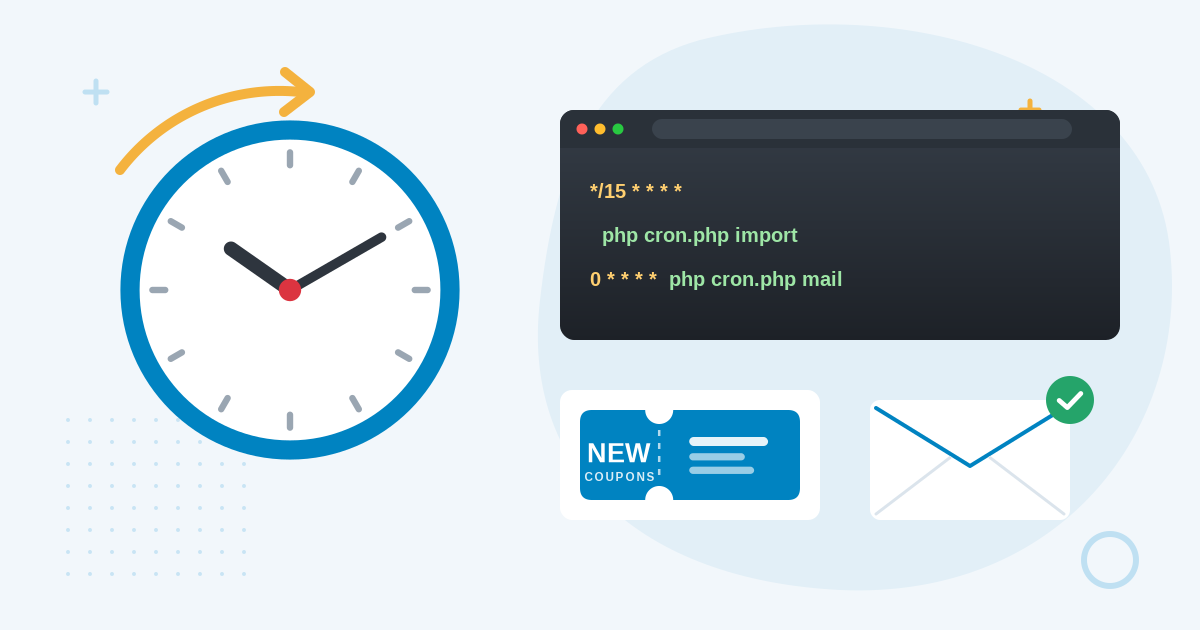
* * * * * cd /home/couponscript/public_html/cronjobs && php email_queue.phpThis is a crontab entry. The first part of the entry is responsible for timing (* * * * * means: every minute, every hour, every day, every month, every day of the week). The second part is the actual command to run.
Now head over to your hosting’s cPanel and select “Cronjobs” from the menu.
Fill the form with the details from your admin panel. It should look similar to this.
Your email cron is now set up.
The CouponFeed cron
Log in to your admin area and navigate to Configuration > Manage Accounts > couponFeed.
Enter your API key. You can find your API key inside your Client’s area.
Try out couponFeed by doing a manual fetch in Feeds / Import > couponFeed fetch.
Below the form you should see an input field with details similar to this:
*/20 * * * * cd /home/couponscript/public_html/cronjobs && php couponfeed.phpThis is a crontab entry. The first part of the entry is responsible for timing (*/20 * * * * means: every 20 minutes, every hour, every day, every month, every day of the week). The second part is the actual command to run.
Now head over to your hosting’s cPanel and select “Cronjobs” from the menu.
Fill the form with the details from your admin panel. It should look similar to this.
The couponFeed cron is now set up.
The iCodes cron
Log in to your admin area and navigate to Configuration > Manage Accounts > iCodes.
Enter your iCodes username and Subscription ID. You can find your ID right after logging in to iCodes.
Try out iCodes by doing a manual fetch in Feeds / Import > iCodes fetch.
Below the form you should see an input field with details similar to this:
0 * * * * cd /home/couponscript/public_html/cronjobs && php icodes.phpThis is a crontab entry. The first part of the entry is responsible for timing (0 * * * * means: at minute 0, every hour, every day, every month, every day of the week). The second part is the actual command to run.
Now head over to your hosting’s cPanel and select “Cronjobs” from the menu.
Fill the form with the details from your admin panel. It should look similar to this.
The iCodes cron is now set up.
Now that you have a solid stream of coupons and deals it’s time to add some analytics.
Frequently asked questions
What does */20 * * * * mean in a cron job?
It runs at minutes 0, 20 and 40 of every hour. The remaining asterisks allow every hour, day of month, month and day of week. In cPanel, put */20 in Minute and an asterisk in each remaining timing field. Put the executable command in the separate Command field.
Why does a PHP cron job work manually but fail on schedule?
Cron may run with a different environment, working directory or PHP executable from your interactive terminal. Use absolute paths and check the selected PHP version and configuration. Save standard output and errors to a private log. Also check permissions, account limits and whether the scheduled user can access the script.
Should I hide cron output with /dev/null?
Keep output while configuring a job so you can see missing files, PHP startup errors and failed connections. Redirect it to a private log and arrange rotation. Once the task has reliable monitoring, discarding routine output may be reasonable, but don’t remove your only evidence that imports or email processing have stopped.
Confirm a scheduled run, not just a saved entry
After saving a cPanel cron job, wait for its next scheduled time and check the log and application result. A smaller queue or a successful import is useful evidence. An entry visible in the panel only proves that a schedule was saved.